

Please confirm pricing before ordering!
Raspberry Pi 3 Model B+ / 3B 7 inch (1024x600) IPS Capacitive Touch Screen 7" Monitor Display
Description:

[Packing List]
- 1 x 7 Inch IPS Screen
- 1 x ABS Case with Stander
- 1 x HDMI Cable (30cm length)
- 1 x USB Cable (38cm length)

Note:
1. The Raspberry Pi is not included
2. There is a protective film on the screen, you can remove it before using.
Overview:
- This is a universal IPS HDMI Display, 1024 times 600 resolution with tempered glass capacitive screen touch panel.
- Not only supports Raspberr Pi, but also supports Banana Pi, Beaglebone, other Mini PC ect.
- This screen can be used as a computer monitor, supports windows10.
Description:
- Plug and play!
- 7inch IPS screen;
- 1024x600 hardware resolution, onfigurable by software (up to 1920x1080);
- Toughened glass capacitive touch panel, 6H hardness;
- Supports popular mini PC such as Raspberry Pi, BB Black, Banana Pi;
- Supports Raspbian, Ubuntu, WIN 10 IOT, single touch and driver free;
- Supports Desktop/Laptop, Supports Windows 10/8.1/8/7,five-points touch, and driver free.
- Multi languages OSD menu, for power management, brightness/contrast adjustment, etc
- 3.5mm audio jack;
- Supports HDMI audio output;
- Supports VGA input;
- With high quality PC case, optional tilt angle: 30deg/50deg
- Support display rotation, please refer to wiki:http://www.raspberrypiwiki.com/index.php/7_inch_HDMI_LCD_(H)#Rotate
[Applications]
Raspberry Pi 3 Model B+, 3 Model B, 2B, B+
BB Black
Banana Pi
Mini PC
Desktop/Laptop
Keys Introduction:
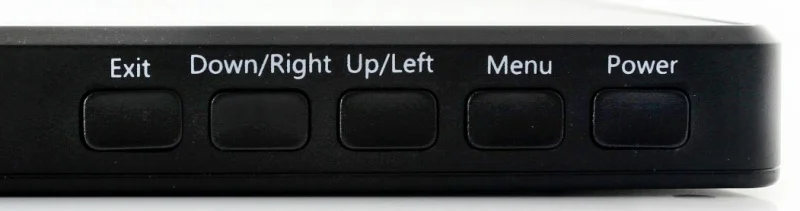
- Power: Open or Close LCD display
- Menu: Open OSD menu (It can also work as OK after entering the menu )
- Up/Left: Direction button
- Down/Right: Direction button
- Exit: it can also work as Return after entering the menu
- You can use "Power" button to close LCD display for reducing consumption if it will be idle for a long time.
- Open OSD menu by press button Menu, then use "OK button" and "Direction button" to change the configuration.Then use "Return button" to exit.
FAQ:
1/ Why the LCD doesn't work with my Raspbian?
To use the LCD with the Raspberry Pi official image, driver should be installed first. Please refer to the user manual.
However, for the first testing, you may want to use our provided image directly.
2/ Why the LCD still doesn't work with the waveshare provided image?
Make sure the hardware connection is correct and connects fine.
Make sure the image in TF card is burnt correctly.
The PWR will keep on and the ACT will keep blinking when the Raspberry Pi starts up successfully, in case both of the two LEDs keep on,
it is possible that the image was burnt incorrectly OR the TF card was in bad contact.
3/ Which power supply should I use?
It is strongly recommended to use a stand-alone 5V/2A power adapter, because the PC's USB port might have not enough power to support the Pi and LCD.
For more details:
Please refer to WIKI : www.raspberrypiwiki.com/index.php/7_inch_HDMI_LCD_(H)
NEW Raspberry Pi 3b+ Touch Screen 7" Monitor Display
- Product Code:3b - 3b+
- Availability:Pre Order (2-10 days)
-
R1,899.00
Related Products
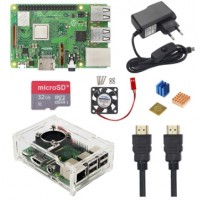
Raspberry P model 3 b+i Kit
PACKAGE INCLUDES: 1 x Raspberry Pi 3b+ 1 x ABS Case 1 x Fan 1 x Power cable3 x Heat Sinks 1 x 3..
R3,999.00
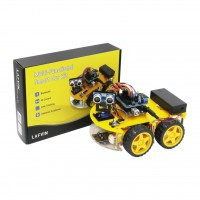
Arduino Robotic Car Kit - (MULTI-FUNCTIONAL)
PACKAGE INCLUDES:1 x ARDUINO UNO R31 x USB cable1 x V5.0 extension board 1 x L298N motor driver bo..
R1,999.00

Raspberry Pi Armor Case with Fan
Raspberry Pi Armor Case with Fan Package Includes:1 x Armor Aluminum Alloy Case with Fan1 x Ass..
R695.00